How to use this prompt on Google Gemini
📝 Prompt: ultra-realistic, high-fashion portrait
Use the uploaded photo as the exact face and body reference of the person. Keep the identity, facial features, skin tone, hairstyle, and natural body proportions unchanged. Do not modify the face.
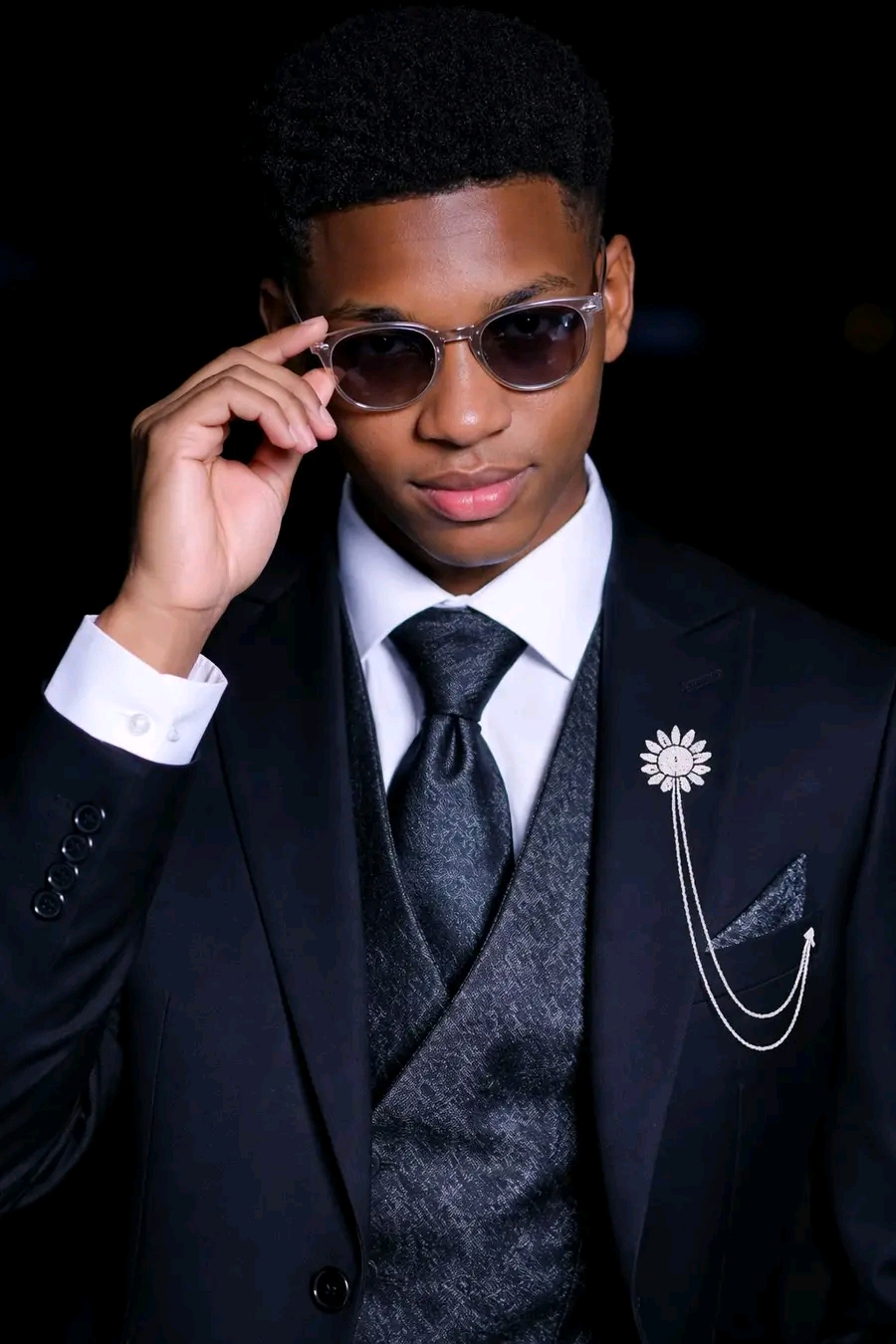
Generate an ultra-realistic, high-fashion portrait with the person wearing an elegant black tuxedo with a patterned black vest, and a white shirt underneath. The person should be wearing a luxury watch on the wrist, with a necktie styled in a sophisticated manner. The pocket square should be neatly arranged in the suit’s pocket, with a decorative brooch on the lapel for an extra touch of class.
The person should be standing next to a luxury car, with the lighting highlighting the sleek textures of the suit and the shine of the watch. The pose should convey confidence and grace, with the person looking down at their watch in a moment of contemplation or readiness. The expression should be calm, serious, and composed, embodying elegance and luxury.
The background should be dark and simple, with just enough light to accentuate the person and their outfit. A subtle, well-lit luxury car should be visible in the background, enhancing the high-class atmosphere. The lighting should create sharp contrasts, bringing out the fine details of the clothing, watch, and accessories.
The final image should have a premium finish, 4K resolution, and hyper-realistic textures, giving it a clean, polished, and professional feel.
Negative prompt:
altered face, different person, distorted facial features, blurry clothing, poor lighting, cartoonish style, unnatural pose, excessive accessories, low quality, wrong proportions
Generate an ultra-realistic, high-fashion portrait with the person wearing an elegant black tuxedo with a patterned black vest, and a white shirt underneath. The person should be wearing a luxury watch on the wrist, with a necktie styled in a sophisticated manner. The pocket square should be neatly arranged in the suit’s pocket, with a decorative brooch on the lapel for an extra touch of class.
The person should be standing next to a luxury car, with the lighting highlighting the sleek textures of the suit and the shine of the watch. The pose should convey confidence and grace, with the person looking down at their watch in a moment of contemplation or readiness. The expression should be calm, serious, and composed, embodying elegance and luxury.
The background should be dark and simple, with just enough light to accentuate the person and their outfit. A subtle, well-lit luxury car should be visible in the background, enhancing the high-class atmosphere. The lighting should create sharp contrasts, bringing out the fine details of the clothing, watch, and accessories.
The final image should have a premium finish, 4K resolution, and hyper-realistic textures, giving it a clean, polished, and professional feel.
Negative prompt:
altered face, different person, distorted facial features, blurry clothing, poor lighting, cartoonish style, unnatural pose, excessive accessories, low quality, wrong proportions
📖 Step-by-Step Instructions
💻 On Desktop (Computer)
- Click "Copy Prompt" – the button will show a loader and then confirm the copy.
- Click "Open Gemini (Web)" to launch Google Gemini in a new tab.
- Paste the prompt into the chat box (Ctrl+V / ⌘+V).
- If you want to transform an existing photo, upload it using the Gemini interface (paperclip or "+" icon).
- Press Enter and wait a few seconds for the AI to generate your stunning image.
📱 On Mobile (Phone/Tablet)
- Download the official Google Gemini app from the Google Play Store (Android) or the Apple App Store (iOS).
- Open the app and sign in with your Google account.
- Tap the chat input area, then long-press and select "Paste" to insert the copied prompt.
- If needed, attach a photo using the attachment button (paperclip or image icon).
- Tap the send button and watch the AI create your image.
💡 Tip: You can modify the prompt before sending to better suit your needs.