How to use this prompt on Google Gemini
📝 Prompt: Luxury birthday poster design
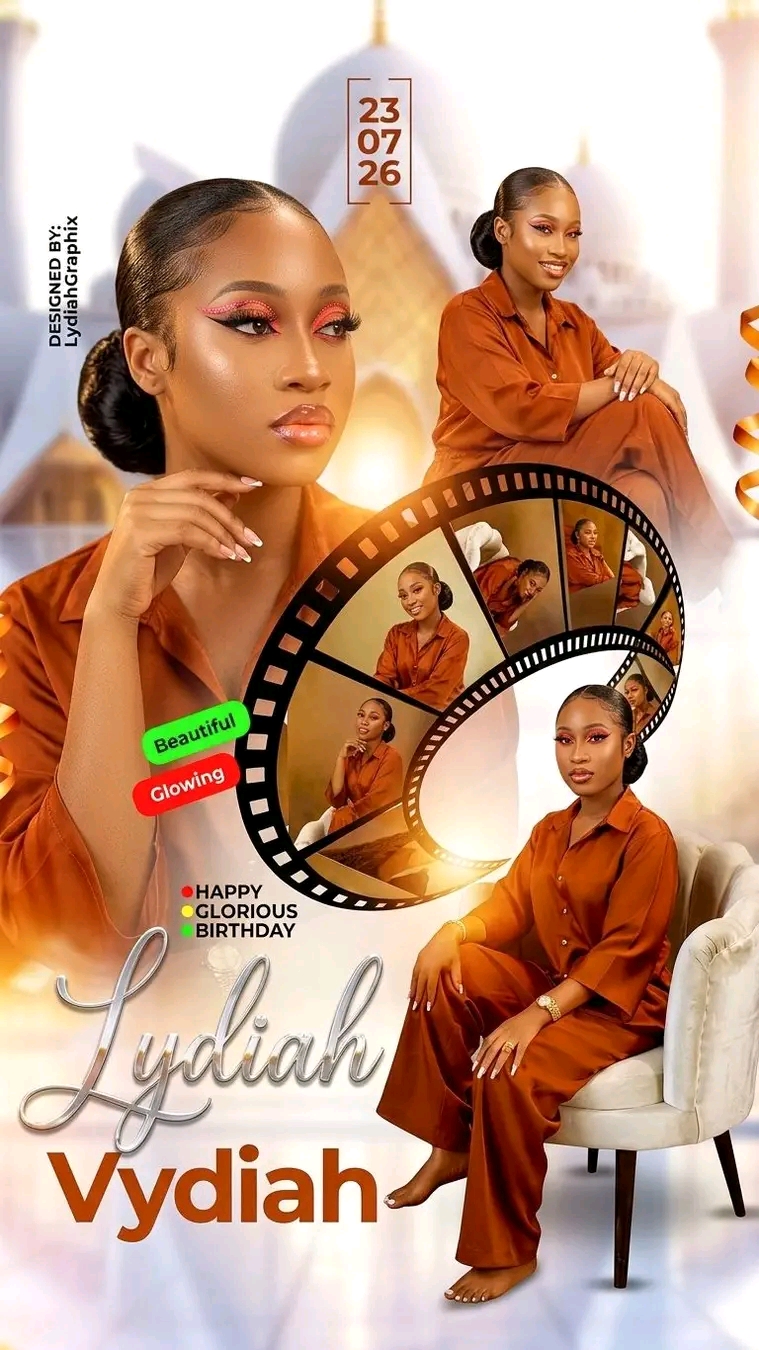
Luxury birthday poster design featuring a young woman in multiple elegant portrait poses arranged in a cinematic collage. Large close-up portrait on the left, seated portrait on the lower right, and additional portraits displayed inside a curved metallic film strip element. Soft cream, ivory, champagne gold, and warm beige color palette. Blurred palace-inspired architecture with domes and towers in the background, dreamy atmospheric depth, soft golden-hour lighting, smooth skin texture, high-end studio photography, glossy premium magazine aesthetic, luxury celebration theme. Elegant typography with the celebrant's name in large metallic silver script at the bottom, birthday greeting text above, modern date placement near the top center, decorative gold ribbon accents on both sides, plush carpet and modern accent chair, ultra-detailed, professional graphic design, photorealistic, premium birthday flyer, balanced composition, depth of field, 8K quality, sharp focus, clean background, sophisticated and glamorous.
For Midjourney, add:
--ar 2:3 --v 7 --stylize 250 --quality 2
For Photoshop AI or Flux, you can end with:
highly detailed, realistic lighting, luxury poster design, professional retouching, print-ready, ultra sharp, masterpiece.
For Midjourney, add:
--ar 2:3 --v 7 --stylize 250 --quality 2
For Photoshop AI or Flux, you can end with:
highly detailed, realistic lighting, luxury poster design, professional retouching, print-ready, ultra sharp, masterpiece.
📖 Step-by-Step Instructions
💻 On Desktop (Computer)
- Click "Copy Prompt" – the button will show a loader and then confirm the copy.
- Click "Open Gemini (Web)" to launch Google Gemini in a new tab.
- Paste the prompt into the chat box (Ctrl+V / ⌘+V).
- If you want to transform an existing photo, upload it using the Gemini interface (paperclip or "+" icon).
- Press Enter and wait a few seconds for the AI to generate your stunning image.
📱 On Mobile (Phone/Tablet)
- Download the official Google Gemini app from the Google Play Store (Android) or the Apple App Store (iOS).
- Open the app and sign in with your Google account.
- Tap the chat input area, then long-press and select "Paste" to insert the copied prompt.
- If needed, attach a photo using the attachment button (paperclip or image icon).
- Tap the send button and watch the AI create your image.
💡 Tip: You can modify the prompt before sending to better suit your needs.