How to use this prompt on ChatGPT
📝 Prompt: Ultra-realistic portrait of a distinguished African businessman
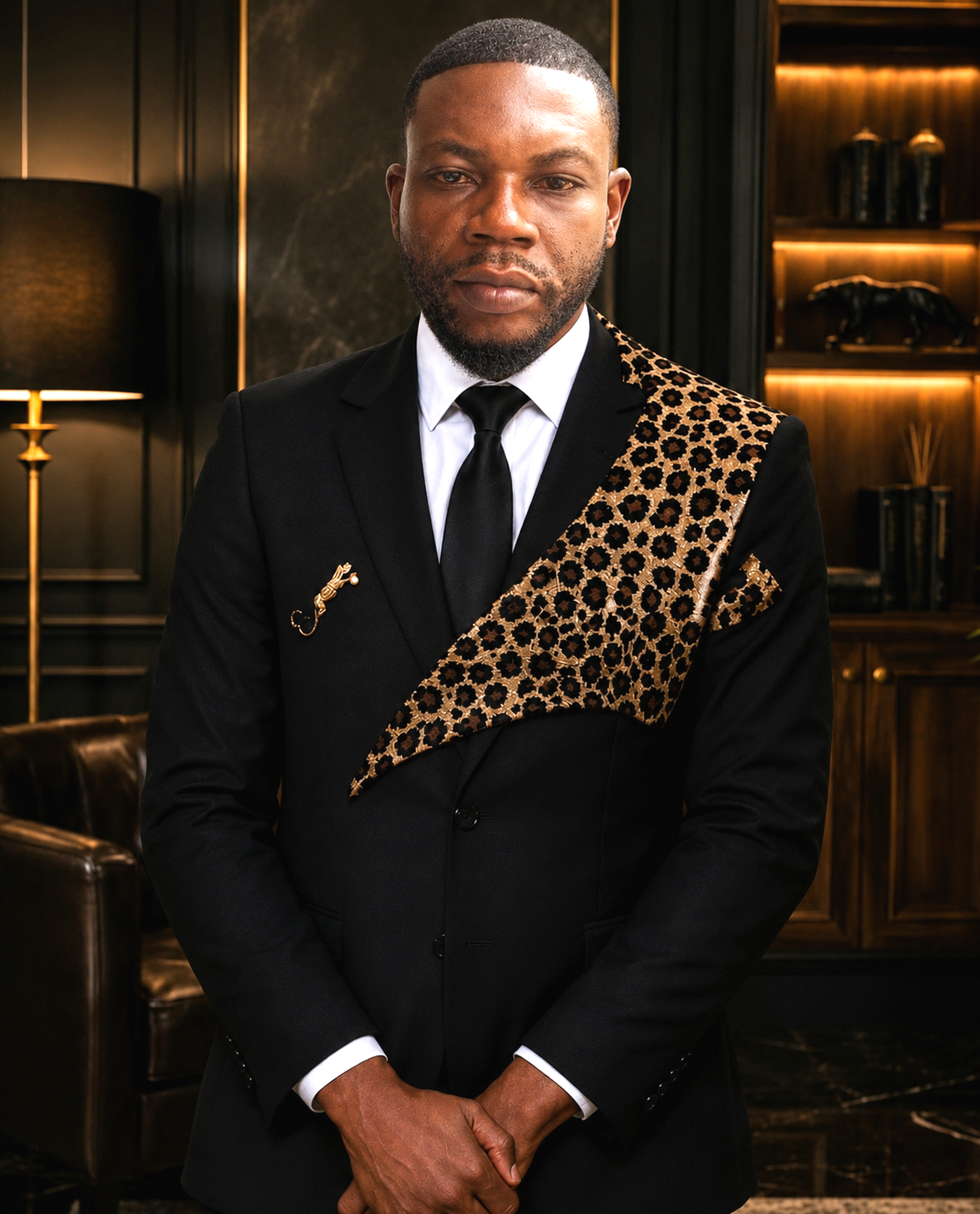
Ultra-realistic portrait of a distinguished African businessman standing confidently in a luxurious executive office. Wearing a bespoke black suit with an elegant leopard-print sash draped diagonally across the chest and shoulder, white dress shirt, black silk tie, gold lapel pin, and matching pocket square. Sophisticated and powerful presence, hands clasped in front, direct eye contact with the camera. Dark wood-paneled interior, marble accents, leather armchair, warm golden ambient lighting, luxury shelves, premium corporate atmosphere. Cinematic lighting, fashion editorial photography, luxury magazine cover, shallow depth of field, ultra-detailed skin texture, photorealistic, HDR, high contrast, rich black tones, professional color grading, sharp focus, 85mm lens, f/1.8, 8K masterpiece, high-end menswear campaign, elegance, wealth, prestige.
📖 Step-by-Step Instructions
💻 On Desktop (Computer)
- Click "Copy Prompt" – a loader will appear then the button confirms the copy.
- Click "Open ChatGPT (Web)" to launch ChatGPT in a new tab.
- Paste the prompt into the chat box (Ctrl+V / ⌘+V).
- If you have a ChatGPT Plus subscription, you can use DALL‑E to generate images – upload your photo when prompted.
- Press Enter and let the AI create your masterpiece.
📱 On Mobile (Phone/Tablet)
- Download the official ChatGPT app from the Google Play Store (Android) or the Apple App Store (iOS).
- Open the app and log in to your OpenAI account.
- Tap the chat input, then long-press and choose "Paste" to insert the copied prompt.
- If you want to use an image, tap the attachment icon (paperclip or image) and select a photo from your gallery.
- Tap the send button and wait for the AI to generate the result (requires ChatGPT Plus for DALL‑E image generation).
💡 Note: For image generation, ChatGPT requires a Plus subscription and the DALL‑E model. The prompt works best when you provide a reference photo.